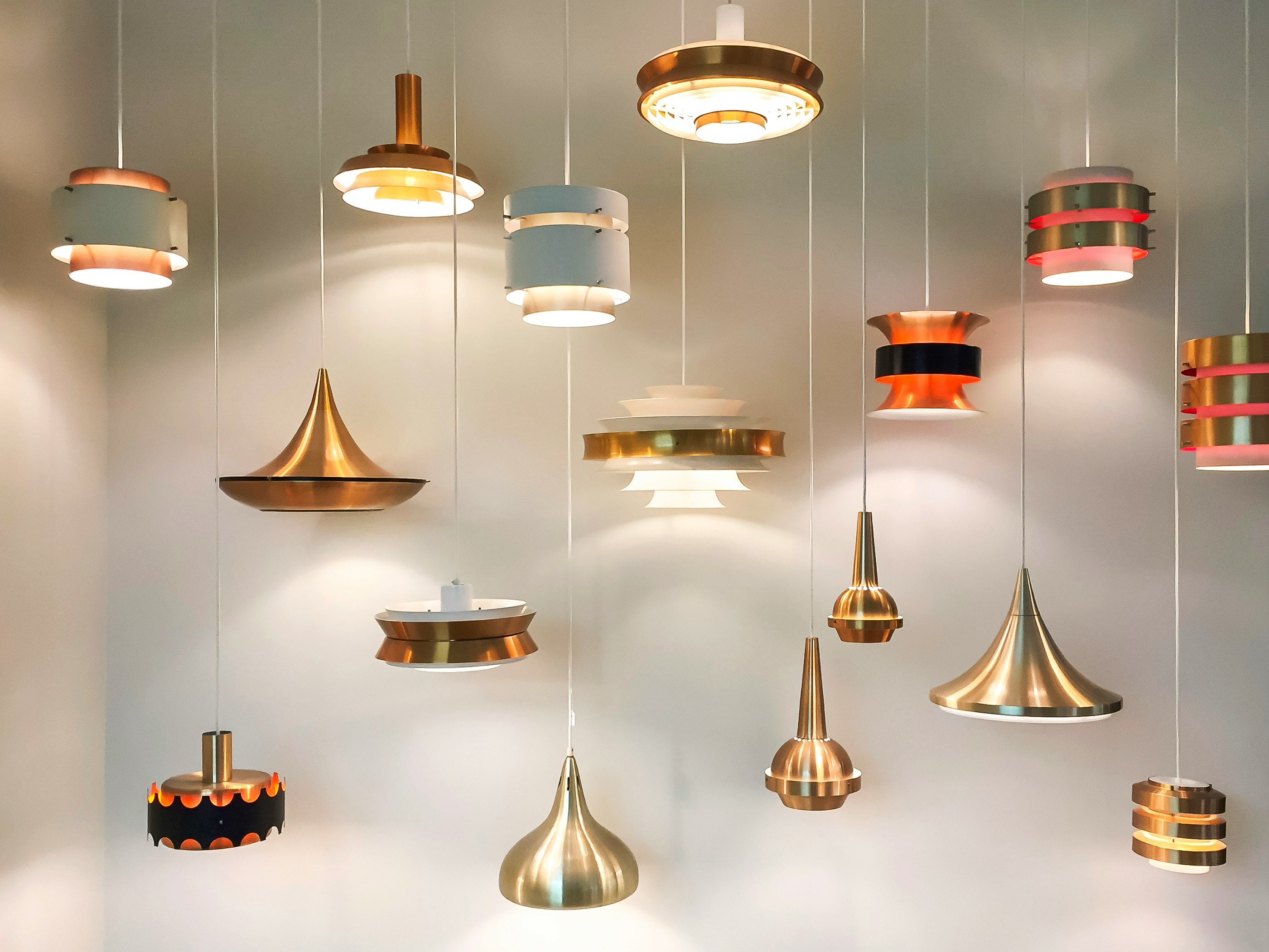
icking the right light fixture from a catalog photo or a spec sheet is a bit like choosing paint from a tiny swatch — you get a hint of the color, but not the full picture. You don't really know how a fixture will behave until it's actually throwing light across your walls, ceiling, and floor.
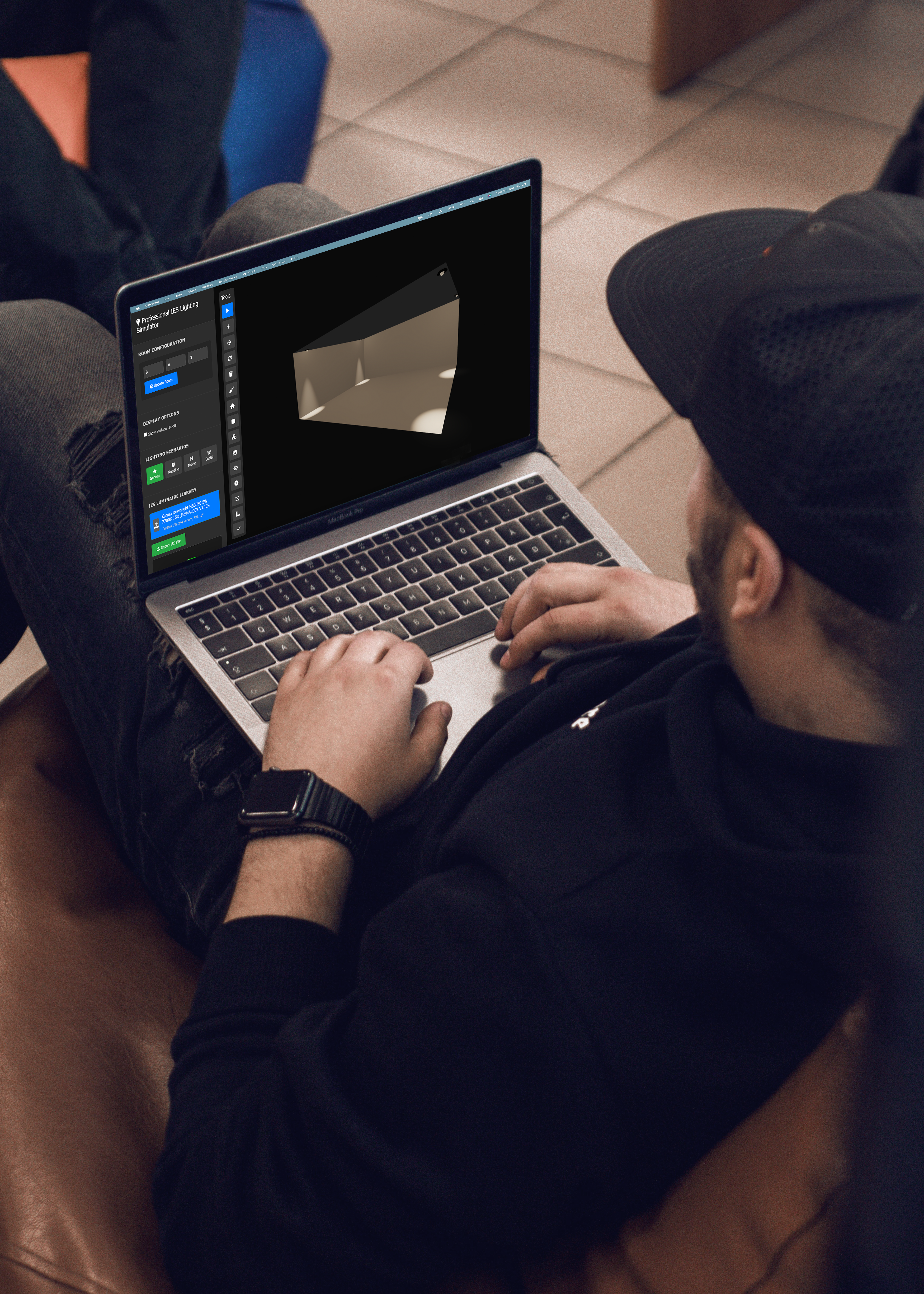
That's the exact gap Blox 3D Simulator is built to close. Instead of guessing, you can drop a real manufacturer's photometric data into your scene and watch the light behave exactly as it would in the physical product. The key to unlocking this is a small but powerful file format: the IES file.
What Is an IES File, Really?
An IES file is a standardized data file — usually with a .ies extension — that describes exactly how a specific light fixture distributes light in space. It's not a texture, not a render preset, and not a generic "warm" or "cool" light setting. It's real photometric data, measured in a lab, that captures things like:
- The shape and spread of the light beam
- How intensity falls off at different angles
- Whether the fixture produces a tight spotlight, a wide flood, or an asymmetric wash
- Color temperature and lumen output tied to the actual product
Because this data comes directly from the manufacturer's own testing, an IES file is essentially a lighting fingerprint. Two fixtures that look identical in a product photo can throw completely different patterns of light — and the IES file is what reveals that difference before you commit to a purchase.
Why Use Manufacturer IES Files Instead of Generic Lights?
It's tempting to just add a generic spotlight or point light in a 3D scene and move on. But generic lights are approximations — they don't reflect the real optics, lens, or reflector design of an actual product. Using the manufacturer's IES file instead gives you:
1. Accuracy you can trust The beam angle, intensity curve, and falloff match the physical fixture, not a rough guess.
2. Product-specific comparison You can load IES files from two or three competing products and see, side by side, how their light actually differs on the same wall or surface.
3. Confidence before purchase or installation Whether you're a homeowner picking pendant lights, a designer specifying fixtures for a client, or a retailer showcasing a product line, you get a realistic preview instead of a marketing render.
4. Fewer surprises on site Because the simulation is based on real photometric data, what you see in Blox is far closer to what you'll get once the fixture is actually installed.
How to Try It in Blox 3D Simulator
Getting a manufacturer's product into your scene is straightforward:
- Find the IES file — Most reputable lighting manufacturers publish IES files for their products on their website, usually on the same page as the spec sheet or downloads section. Some fixtures ship with multiple IES files for different lamp or lens options.
- Import it into Blox — Load the .ies file into your project just like any other asset.
- Place it in your scene — Position the light where the real fixture would sit: recessed in a ceiling, mounted on a wall, or hanging as a pendant.
- Adjust your surroundings — Add walls, furniture, or surfaces relevant to your space so you can see how the light interacts with real geometry.
- Compare and evaluate — Swap in different manufacturer files to compare beam spread, brightness, and mood side by side.
A Few Tips for Better Results
- Match units and scale. A beautifully accurate IES file won't look right if your 3D scene isn't built to real-world scale.
- Use neutral surfaces first. Test on plain walls or a simple room before adding complex materials, so you can judge the raw light pattern without visual noise.
- Check the source. Always pull IES files from the manufacturer's own site or an official distributor page to make sure the data actually matches the product you're evaluating.
- Test multiple angles. A fixture might look great head-on but cast an unexpected shadow pattern from the side — rotate your view to check.
The Bigger Picture
Lighting is one of the hardest things to judge from a spec sheet alone. By pairing Blox 3D Simulator with real IES files straight from lighting manufacturers, you get an honest, data-driven preview of how a product will actually perform — not just how it's described in a catalog. Whether you're designing a single room or comparing an entire product lineup, this workflow turns lighting selection from a guessing game into an informed decision.
Next time you're deciding between fixtures, skip the photos and load the IES file instead. Let the actual light do the talking.
Stay tuned for more lighting topics!
Blox's Team, Light Less Ordinary.